+91 9312966129
 sparc.enquiry01@gmail.com


Google Search Console Tutorial for Students
Learn Google Search Console step by step. Track clicks, impressions, indexing, keywords, and website performance with this beginner-friendly student guide.
If you've ever wondered how Google sees your website, this Google Search Console tutorial is exactly where you need to start. Google Search Console (GSC) is a free tool provided by Google that helps you monitor, maintain, and troubleshoot your site's presence in Google Search results. For students and beginners stepping into the world of SEO, learning this tool is one of the most practical skills you can develop. By the end of this guide, you'll understand how to set up Search Console, navigate its dashboard, track keyword performance, check indexing, and use real data to grow a website.
What Is Google Search Console?
Google Search Console is a free web service offered by Google. It allows website owners, SEO professionals, bloggers, and students to track how their site performs in Google Search. It shows which keywords bring visitors, which pages are indexed, and what errors need fixing.
Why Google Created Search Console
Google built a Search Console to help webmasters communicate with the Google crawler. Without it, you'd have no way of knowing if Google can find and read your pages. Google wants websites to be healthy, fast, and relevant — and this tool makes that possible.
Who Should Use Google Search Console?
Google Search Console training for beginners is relevant across many groups:
- Students learning digital marketing or web development
- Bloggers who want to track traffic and keyword rankings
- SEO professionals doing technical audits and reporting
- Website owners who want to grow their organic traffic
Benefits of Learning GSC as a Student
- Gain hands-on SEO experience before your first job
- Understand real data, not just theory
- Build a strong portfolio for internships
- Learn how to diagnose and fix SEO issues
Gain hands-on SEO experience before your first job by learning tools like Google Search Console. If you're planning to build your skills professionally, check out this complete guide to choosing the right digital marketing course.
Why Students Should Learn Google Search Consol
In a competitive digital marketing industry, practical skills matter as much as certifications. The Google Search Console tutorial you're reading now can help you develop those skills quickly.
Understanding Real SEO Data
Books and courses teach theory. Google Search Console shows you what's actually happening with a real website. You can see which pages rank, how many people click, and what search queries bring visitors.
Learning Keyword Performance
Google Search Console shows the exact search terms your site ranks for. This is gold for any SEO learner. If you're new to SEO, start with our keyword research tutorial for beginners to understand how to identify valuable search terms before analyzing them in Search Console. You don't need expensive tools to find ranking keywords — Search Console gives you that data for free.
Tracking Website Growth
Over time, you can see whether your SEO efforts are paying off. Are impressions increasing? Are you getting more clicks? Is your average position improving? All of this is visible in one place. To improve these metrics, start with an on-page SEO checklist for beginners and optimize your pages consistently.
Building Practical SEO Skills
Going through this Google Search Console tutorial teaches you to think like an SEO professional — analyzing data, identifying patterns, and making content decisions based on evidence.
Useful for Digital Marketing Internships
Many internship interviews ask about tools like Google Search Console. Employers value candidates who can log in, pull a performance report, and explain what the data means. GSC training for beginners gives you that advantage. To see how these practical skills helped a learner get hired, read how one student landed their first SEO internship.
Prerequisites Before Using Google Search Console
Before using Google Search Console, make sure you have a Google account and access to the website you want to monitor. You should be able to verify website ownership through methods like an HTML tag, DNS record, or Google Analytics. It's also helpful to understand the difference between Domain and URL Prefix properties. Having access to your website's backend will make the setup and verification process much easier.
Google Account
You need a Google account (Gmail) to access Google Search Console. It's free to create at google.com.
Website Ownership
You must own or have admin access to the website. Google Search Console requires you to verify that the site belongs to you.
Domain vs URL Property
When adding a site to Search Console, you'll choose between two property types:
| Property |
Type Covers |
Verification Method |
| Domain Property |
All URLs across HTTP, HTTPS, and subdomains |
DNS record only |
| URL Prefix Property |
Only URLs under a specific prefix (e.g., https://yoursite.com) |
Multiple methods |
Beginners are usually better off starting with a URL Prefix property since it offers more verification options.
Access to Website Backend
To verify ownership, you may need access to your website's backend — this means being able to add an HTML tag to your section, upload an HTML file, or modify DNS records.
Search Console Setup Guide: Step-by-Step Process
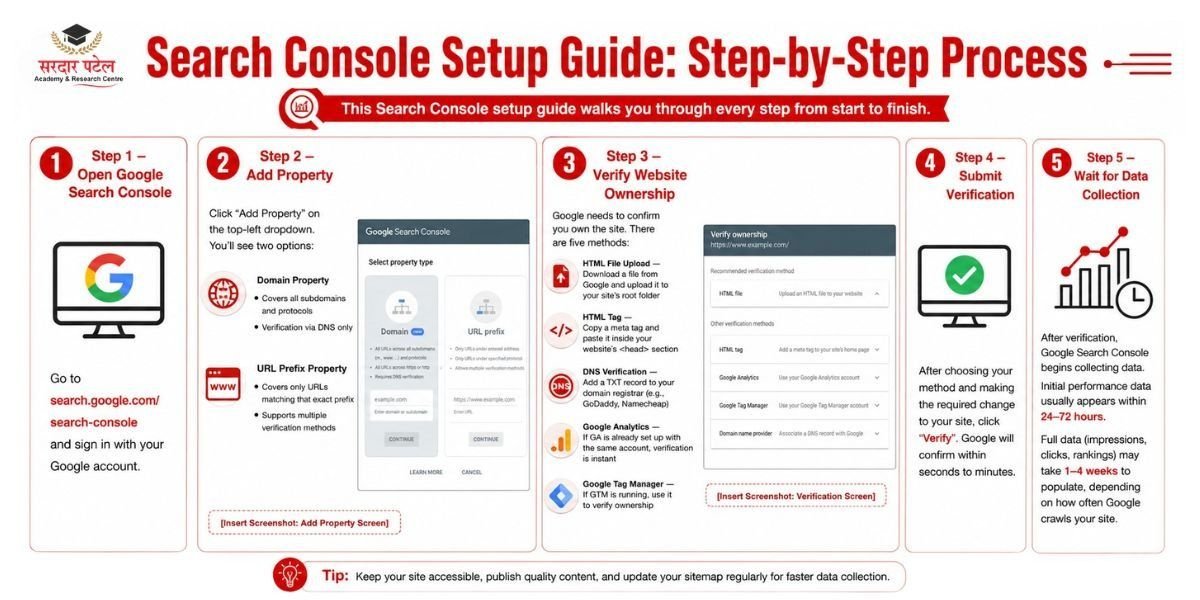
This Search Console setup guide walks you through every step from start to finish.
Step 1 – Open Google Search Console
Go to search.google.com/search-console and sign in with your Google account.
Step 2 – Add Property
Click "Add Property" on the top-left dropdown. You'll see two options:
1. Domain Property
- Covers all subdomains and protocols
- Verification via DNS only
2. URL Prefix Property
- Covers only URLs matching that exact prefix
- Supports multiple verification methods
Step 3 – Verify Website Ownership
Google needs to confirm you own the site. There are five methods:
- HTML File Upload — Download a file from Google and upload it to your site's root folder
- HTML Tag — Copy a meta tag and paste it inside your website's section
- DNS Verification — Add a TXT record to your domain registrar (e.g., GoDaddy, Namecheap)
- Google Analytics — If GA is already set up with the same account, verification is instantGoogle
- Tag Manager — If GTM is running, use it to verify ownership
Step 4 – Submit Verification
After choosing your method and making the required change to your site, click "Verify". Google will confirm within seconds to minutes.
Step 5 – Wait for Data Collection
After verification, Google Search Console begins collecting data. Initial performance data usually appears within 24–72 hours. Full data (impressions, clicks, rankings) may take 1–4 weeks to populate, depending on how often Google crawls your site.
Understanding the Google Search Console Dashboard
Once inside, the dashboard gives you a clean overview of your website's health.
Overview Section
The Overview page shows a snapshot of your site's performance — total clicks, impressions, and any indexing or experience issues. Think of it as your SEO control panel.
Navigation Menu Overview
| Section |
What It Shows |
| Performance |
Clicks, impressions, CTR, average position |
| URL Inspection |
Whether a specific URL is indexed |
| Indexing |
Pages indexed vs. not indexed |
| Experience |
Core Web Vitals and page experience |
| Links |
Internal and external links to your site |
| Settings |
Property settings and user management |
How to Use the Performance Report
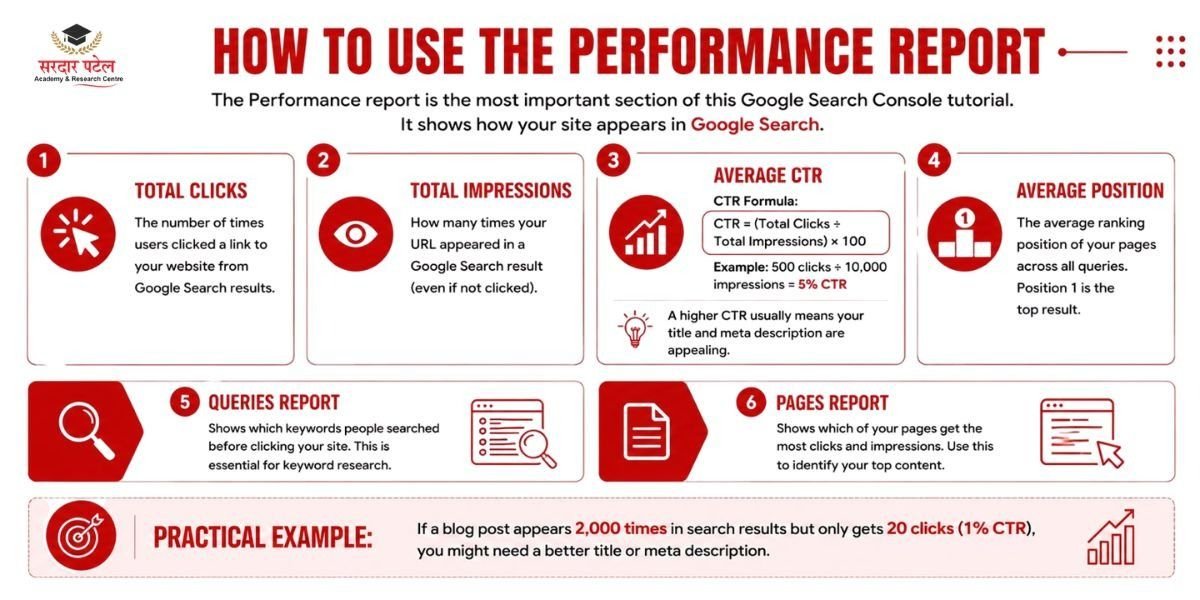
The Performance report is the most important section of this Google Search Console tutorial. It shows how your site appears in Google Search.
Total Clicks
The number of times users clicked a link to your website from Google Search results.
Total Impressions
How many times your URL appeared in a Google Search result (even if not clicked).
Average CTR
CTR Formula: CTR = (Total Clicks ÷ Total Impressions) × 100
Example: 500 clicks ÷ 10,000 impressions = 5% CTR
A higher CTR usually means your title and meta description are appealing.
Average Position
The average ranking position of your pages across all queries. Position 1 is the top result.
Queries Report
Shows which keywords people searched before clicking your site. This is essential for keyword research.
Pages Report
Shows which of your pages get the most clicks and impressions. Use this to identify your top content.
Practical Example: If a blog post appears 2,000 times in search results but only gets 20 clicks (1% CTR), you might need a better title or meta description.
How to Check Website Indexing in Search Console
What Is Indexing?
Indexing means Google has discovered, crawled, and added your page to its search index. If a page isn't indexed, it won't appear in search results.
Why Pages Sometimes Do Not Get Indexed
- Page is marked "noindex" in HTML
- Page is blocked by robots.txt
- Page has low-quality content
- Page has been recently published and Google hasn't crawled it ye
- tCanonical tag pointing to a different URL
How to View Indexed Pages
Go to Indexing > Pages in the sidebar. You'll see a breakdown of indexed vs. not indexed pages, with reasons for exclusions.
How to Request Indexing
Use the URL Inspection Tool to enter a specific URL and click "Request Indexing." Google will add it to the crawl queue.
Issues like noindex tags, robots.txt blocks, incorrect canonical tags, and crawl delays are common technical SEO basics every beginner should know.
Using the URL Inspection Tool
What the Tool Does
The URL Inspection Tool lets you check whether a specific URL is indexed in Google and see the last time Google crawled it.
How to Inspect a URL
- Click "URL Inspection" in the left sidebar
- Type or paste a URL from your website
- Press Enter to run the inspection
Understanding Inspection Results
Results will tell you if the page is:
- URL is on Google — Indexed and appearing in search
- URL is not on Google — Not indexed (and why)
- URL is on Google, but has issues — Indexed with warnings
Requesting Reindexing
If you've recently updated a page, click "Request Indexing" after inspection. This tells Google to recrawl the updated page.
Real-Life Example: You publish a new article. After 48 hours, you notice it hasn't appeared in search. You inspect the URL and find the page was accidentally set to "noindex." You fix it, then request indexing — the page appears in search within a day.
Understanding Sitemap Submission
What Is an XML Sitemap?
An XML sitemap is a file that lists all the important URLs on your website. It's written in XML format and helps Google discover your pages faster.
Why Google Needs a Sitemap
A sitemap acts like a map of your website, guiding the Google crawler to all your pages — especially new or deep pages that might not have internal links yet.
How to Submit a Sitemap
- Go to Indexing > Sitemaps in GSC
- Enter your sitemap URL (example: yourwebsite.com/sitemap.xml)
- Click Submit
Most WordPress sites generate a sitemap automatically through plugins like Yoast SEO or Rank Math.
How to Check Sitemap Status
After submission, GSC shows:
- Success (sitemap read without errors)
- Warnings (sitemap had issues but was processed)
- Errors (sitemap could not be read)
How Students Can Use Search Console for Keyword Research
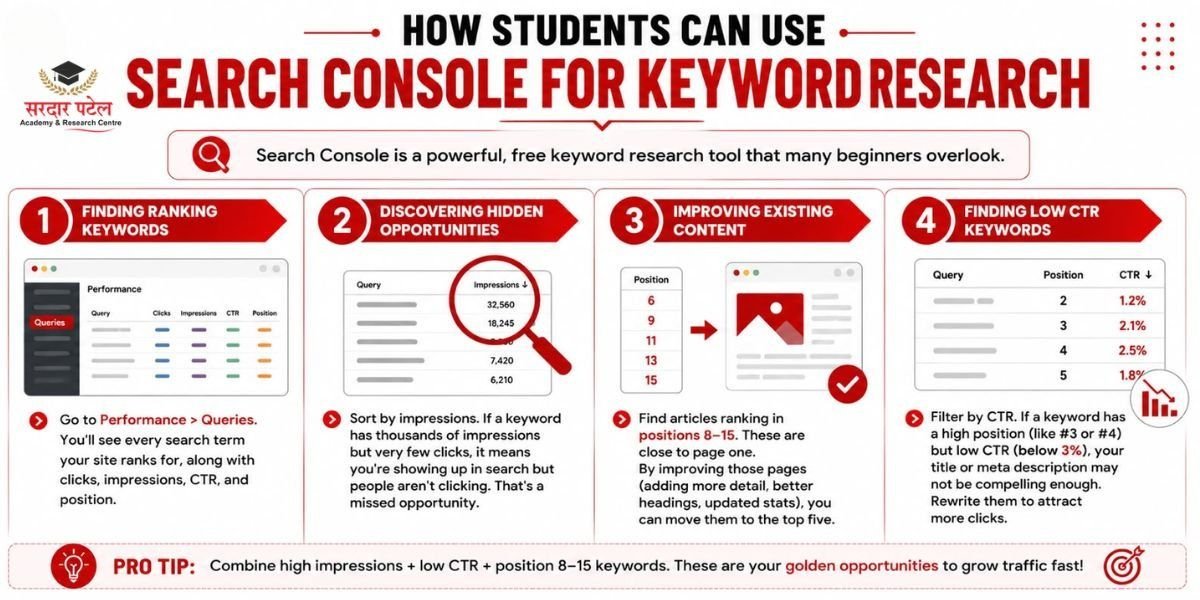
Google Search Console helps students discover the exact keywords their website ranks for in Google Search. By analyzing clicks, impressions, CTR, and average position, beginners can identify high-performing keywords and content opportunities. It also reveals search terms with high impressions but low clicks, helping you optimize titles and meta descriptions. This real-world keyword data makes Search Console one of the best free tools for learning practical SEO.
Finding Ranking Keywords
Go to Performance > Queries. You'll see every search term your site ranks for, along with clicks, impressions, CTR, and position.
Discovering Hidden Opportunities
Sort by impressions. If a keyword has thousands of impressions but very few clicks, it means you're showing up in search but people aren't clicking. That's a missed opportunity.
Improving Existing Content
Find articles ranking in positions 8–15. These are close to page one. By improving those pages (adding more detail, better headings, updated stats), you can move them to the top five.
Finding Low CTR Keywords
Filter by CTR. If a keyword has a high position (like #3 or #4) but low CTR (below 3%), your title or meta description may not be compelling enough. Rewrite them to attract more clicks.
Common Google Search Console Errors and How to Fix Them
| Error |
Cause |
Solution |
| Page Not Indexed |
Noindex tag, robots.txt block, or low quality |
Remove noindex tag, unblock in robots.txt, improve content |
| Crawl Issue |
Server errors or broken redirects |
Check hosting, fix 500 errors, repair redirect chains |
| Duplicate Content |
Multiple URLs with identical content |
Add canonical tags pointing to the preferred URL |
| Mobile Usability Issues |
Text too small, elements too close |
Fix via responsive CSS, test with Google's Mobile-Friendly Test |
| Sitemap Errors |
Incorrect sitemap URL or formatting |
Regenerate sitemap using a plugin, resubmit |
Google Search Console Features Every Beginner Should Learn
| Feature |
Purpose |
Where to Find It |
| Performance Report |
Track clicks, impressions, CTR, position |
Performance > Search Results |
| URL Inspection Tool |
Check indexing and request reindexing |
URL Inspection |
| Indexing Report |
See indexed vs. excluded pages |
Indexing > Pages |
| Sitemap Report |
Submit and monitor sitemaps |
Indexing > Sitemaps |
| Link Report |
See who links to you and your top linked pages |
Links |
| Core Web Vitals |
Monitor page speed and user experience |
Experience > Core Web Vitals |
Beginner Mistakes to Avoid in Google Search Console
Checking Data Daily and Panicking
SEO is slow. Rankings don't change overnight. Checking data every day causes unnecessary stress. Review data weekly or monthly instead.
Ignoring Impressions
Impressions tell you how visible your site is. A rising impression count means Google is showing your pages more — even if clicks haven't caught up yet. Don't ignore this signal.
Focusing Only on Clicks
Clicks matter, but so do CTR and position. A page ranking #1 with low CTR might need a better title. Track all four core metrics together.
Not Submitting Sitemap
Many beginners skip sitemap submission. Without it, Google may miss some of your pages. Always submit your sitemap early.
Misunderstanding Ranking Position Data
The position shown in Google Search Console is an average. A keyword at "position 3.8" might rank anywhere from #1 to #6 depending on the user and their search history.
Forgetting Mobile SEO
Most web traffic now comes from mobile devices. Always check the Mobile Usability section in GSC and fix any issues reported there.
Practical Student Project: Learn Google Search Console by Analyzing a Website
Here's a real project you can complete in 30 days to build practical Google Search Console experience.
Step 1 – Create a Blog
Start a simple blog on WordPress.com or Blogger. Pick a niche you're interested in (travel, technology, food, education).
Step 2 – Connect Search Console
Follow the Search Console setup guide above to add your site as a property and verify ownership.
Step 3 – Submit Sitemap
Generate or locate your sitemap URL and submit it in Google Search Console under Indexing > Sitemaps.
Step 4 – Publish Articles
Write and publish at least five blog posts targeting different keywords. Aim for 800–1,000 words each.
Step 5 – Track Performance for 30 Days
Check your Google Search Console data weekly. Record how many pages are indexed, which queries are driving impressions, and your average position.
Step 6 – Record Findings in Spreadsheet
Use Google Sheets to log weekly data:
- Total indexed pages
- Total clicks
- Total impressions
- Top 5 keywords by clicks
- Top 5 pages by impressions
Career Benefits of Learning Google Search Console
SEO Executive Roles
Every SEO job listing asks for experience with Google Search Console. Employers expect you to interpret performance data and create monthly reports.
Digital Marketing Internships
This Google Search Console tutorial gives you practical experience that looks great on internship applications. Many interns are assigned to monitor and report GSC data from day one. You can also see what our digital marketing students say about their learning experience at SPARC.
Building practical work samples alongside these skills can make your profile stronger, so beginners can also learn how to build a digital marketing student portfolio with real projects.
Content Marketing Careers
Content marketers use GSC to find underperforming articles, discover new keyword opportunities, and measure content ROI.
Freelancing Opportunities
Freelancers offering SEO audits, blog management, or website consulting need GSC skills to deliver value to clients.
Website Analytics Skills
Understanding GSC makes you more effective with other analytics tools too. The concepts — clicks, impressions, crawling, indexing — transfer across platforms. If you're deciding how much training you need to build these skills, this 3 month vs 7 month digital marketing course comparison can help you choose the right learning duration.
Conclusion
This Google Search Console tutorial has walked you through everything a student or beginner needs to get started with SEO reporting. You've learned what Search Console is, why it matters, and how to complete the full Search Console setup guide from adding your property to submitting a sitemap. You now understand the Performance report, the URL Inspection Tool, how indexing works, and how to do basic keyword research without any paid tools.
The best part? Everything covered here is completely free. Google Search Console is one of the most powerful SEO tools available, and it costs nothing to use.
Start today. Create a free blog, connect it to Search Console, and begin tracking your data. Real learning happens when you get your hands on actual numbers — not when you just read about them. The 30-day project outlined above is a great first step. Your future employer or client will be impressed when you can back your SEO decisions with real data.
Start today. Create a free blog, connect it to Search Console, and begin tracking your data. Real learning happens when you get your hands on actual numbers—not when you just read about them. If you want structured guidance and hands-on practice with tools like Google Search Console,.
At Sardar Patel Academy—SPARC explore our Digital Marketing Course in GTB Nagar, Delhi. The 30-day project outlined above is a great first step, and your future employer or client will be impressed when you can back your SEO decisions with real data.
FAQs
Yes, Google Search Console is completely free. Any website owner can sign in with a Google account and access all features at no cost.
Absolutely. Most tasks in Google Search Console — viewing reports, submitting sitemaps, and requesting indexing — require no coding at all. Basic HTML knowledge helps for ownership verification, but it's not essential.
Initial data appears within 24–72 hours after verification. Full performance data (clicks, impressions, rankings) typically takes 1–4 weeks to populate.
Google Analytics tracks what users do on your website (sessions, bounce rate, conversions). Google Search Console tracks how your site appears in Google Search (clicks, impressions, rankings, indexing). Both tools complement each other — see our [Google Analytics Tutorial] for more.
You can verify ownership via HTML file upload, HTML meta tag, DNS TXT record, Google Analytics, or Google Tag Manager. The HTML tag method is the easiest for most beginners.
Yes. The Queries report under Performance shows all the search terms your site ranks for, along with clicks, impressions, CTR, and average position. It's one of the best free keyword research tools available.
Yes — especially for beginners. Google Search Console training for beginners is straightforward because the interface is clean and data-driven. You don't need prior SEO experience to get started and start learning from real website data.