+91 9312966129
 sparc.enquiry01@gmail.com



Best AI Tools for Data Analysis in 2027: Features and Use Cases
Explore 6 best AI tools for data analysis in 2027. Compare features, use cases, pricing, limitations and find the right AI tool for your analytics needs.

Table of Contents
- What to Look for Before Choosing
- The Best AI Tools for Data Analysis, Reviewed
- 1. ChatGPT
- 2. Microsoft Copilot in Excel (Agent Mode)
- 3. Gemini in Google Sheets
- 4. Power BI Copilot
- 5. Tableau Agent and Tableau Pulse
- 6. Julius AI
- Quick Comparison Table
- Free or Paid?
- SQL and Python Assistants
- Matching Tools to Your Role
- Common Mistakes to Avoid
- A Practical Way to Start
- Conclusion
Ask ten analysts which AI assistant they open first each morning and you'll hear ten different answers. That is exactly why searching for the best AI tools for data analysis can feel frustrating: the options are many, the marketing is loud, and the right pick depends on whether your work lives in Excel, a BI dashboard or a Python notebook.
What to Look for Before Choosing
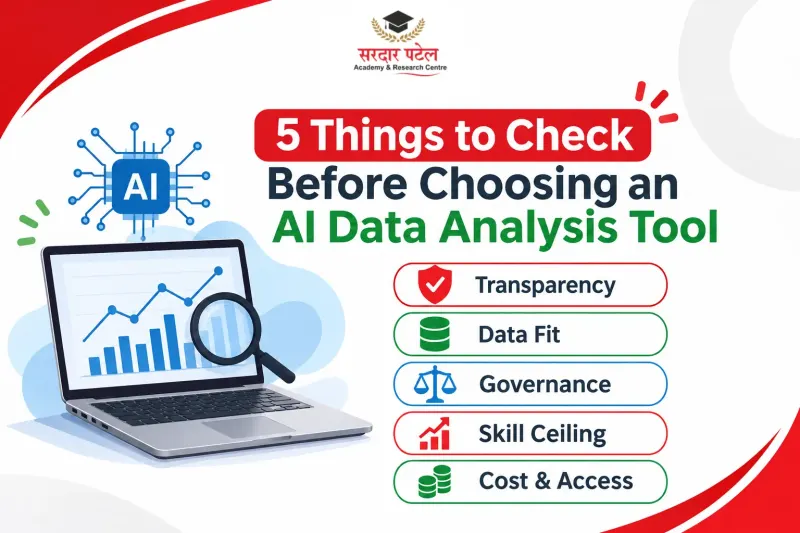
A useful AI assistant has to do more than draw a nice chart. When you compare the best AI tools for data analysis, run each one through five checks:
- Transparency: Can you see the formula, query or code behind an answer?
- Data fit: Does it work where your data already lives, whether that is a workbook, a warehouse or a CSV?
- Governance: Who can see the data you share, and what does your employer allow?
- Skill ceiling: Does it still help once your questions get harder?
- Cost and access: Which licence, capacity or subscription is required?
Transparency matters most. AI can sound completely confident while being wrong, so a tool that hides its method deserves extra suspicion. Read our guide to What Tools Will I Learn in a Data Analytics Course?
The Best AI Tools for Data Analysis, Reviewed
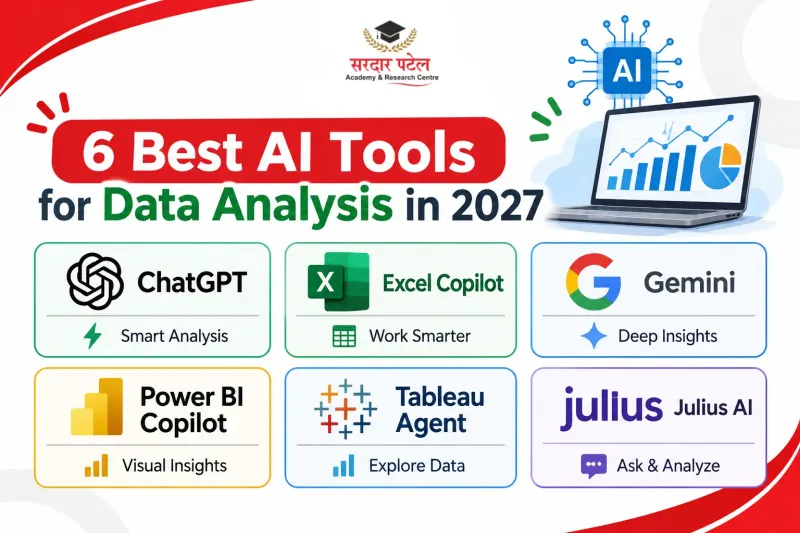
1. ChatGPT
Few tools are as easy to try as ChatGPT. ChatGPT data analysis starts with a file upload and a plain-English question. OpenAI says it handles spreadsheets, PDFs and text or data files such as JSON and XML. For some tasks, it writes and runs Python in a notebook-style environment, so you can ask for grouping, statistical calculations and outlier checks, not just summaries.
The cautions are worth knowing. OpenAI advises reviewing the generated code and assumptions before relying on a result. It may also struggle to pull exact values out of scanned or image-based tables, and its Python environment cannot make external web requests, so upload the data yourself. Details are in OpenAI's data analysis guide.
Best for: quick exploration, learning and prototyping.
Use case (example): a marketing executive uploads a campaign export and asks which channel's cost per lead has drifted over the quarter.
2. Microsoft Copilot in Excel (Agent Mode)
Agent Mode helps you build, edit and analyse workbooks side by side with Copilot, with separate modes for editing, chatting and planning. On Windows, Mac and Excel for the web, you can use all three. On iPad, iPhone and Android, it is limited to chat and plan. Microsoft notes that the feature may not be included in your subscription or your organisation's settings, so check availability before you rely on it. Microsoft's Agent Mode in Excel page lists current availability and limits.
Among AI spreadsheet tools, this is the most natural fit for finance and operations teams, because nobody has to leave Excel.
Best for: daily spreadsheet users who want formulas, pivot tables and charts built faster.
Use case (example): a finance analyst asks it to build a pivot summary of monthly expenses by department and chart the biggest overspends.
3. Gemini in Google Sheets
Gemini can create tables and formulas, generate analysis and insights, and build charts. Google says it works best with native Google Sheets files, so save an .xlsx file as a Google Sheet first. One catch: according to Google's Workspace Updates post, the editable charts Gemini creates refresh when your data changes, but some chart types are inserted as static images, and those do not update. See Google's Sheets guide.
It is another strong option among AI spreadsheet tools, particularly for teams already in Google Workspace.
Best for: collaborative, lightweight analysis.
Use case (example): an HR team asks it to clean a messy feedback sheet, flag inconsistent entries and summarise common themes.
4. Power BI Copilot
Inside Power BI, Copilot can summarise a semantic model, suggest report content, create report pages and answer questions about your data. Results depend heavily on how clean and well-described your data model is. For a deeper look, read our guide to Power BI Copilot: features, uses and limitations.
Requirements to check:
- An administrator needs to enable Copilot in Microsoft Fabric.
- A paid Fabric capacity is needed. Microsoft lowered the requirement in April 2026 to F2 or higher (earlier it was F64), but tiers can change again, so confirm in the Microsoft Learn overview.
Microsoft's adoption guidance suggests you can't simply turn Copilot on and expect productivity gains across an organisation.
Best for: BI teams that already maintain dashboards and governed data models.
Use case (example): a retail BI team asks Copilot to summarise a sales model before building new report pages.
5. Tableau Agent and Tableau Pulse
Tableau splits its AI into two roles. Tableau Agent is a conversational analytics experience, while Tableau Pulse proactively surfaces personalised updates on metric changes where users work. According to Tableau's September 2026 pricing announcement, Agent and Pulse are integrated into the Tableau Cloud+ edition, so check whether your edition (for example, Cloud+) includes both before you plan around them. Tableau's Cloud overview explains how the two fit together.
Best for: organisations already invested in Tableau that want monitoring plus self-service questions.
Use case (example): an operations manager receives a Pulse update when delivery times shift, then asks the Agent why.
6. Julius AI
Julius is built around chatting with data. It supports spreadsheets, Google Sheets and Postgres databases, and its feature page highlights notebooks, prompt-based data cleaning and visualisation. It has a free tier, though limits change, so check them directly. Some reviewers describe chart styling as limited, so treat that as something to test yourself.
Best for: non-technical users who want statistics and charts without writing code.
Use case (example): a small-business owner uploads a sales CSV and asks for monthly trends and a simple forecast.
Quick Comparison Table
The table below puts the top AI analytics tools covered above side by side.
| Tool |
Best for |
Standout feature |
Main caution |
| ChatGPT |
Exploration, learning |
Python-backed analysis |
Verify code and numbers |
| Excel Agent Mode |
Spreadsheet-heavy roles |
Builds and edits workbooks |
Licence and platform limits |
| Gemini in Sheets |
Workspace teams |
Formulas, insights, charts |
Some charts are static images |
| Power BI Copilot |
BI teams |
Works on your semantic model |
Admin setup, paid capacity |
| Tableau Agent and Pulse |
Tableau users |
Conversation plus monitoring |
Edition-dependent (e.g. Cloud+) |
| Julius AI |
Non-coders |
Chat with files and databases |
Check chart styling yourself |
Free or Paid?
Prices change often, so this table shows how access works rather than quoting figures. Check each vendor's pricing page before you buy.
| Tool |
How access works |
| ChatGPT |
Upload limits vary by plan and workspace settings |
| Excel Agent Mode |
Depends on your subscription and organisation settings |
| Gemini in Sheets |
Depends on your Google Workspace plan |
| Power BI Copilot |
Needs paid Fabric capacity (F2 or higher; check current requirement) |
| Tableau Agent and Pulse |
Depends on your Tableau Cloud edition (e.g. Cloud+) |
| Julius AI |
Free tier plus paid plans |
On a tight budget? Our list of best free tools for data analytics is a good companion for beginners.
SQL and Python Assistants
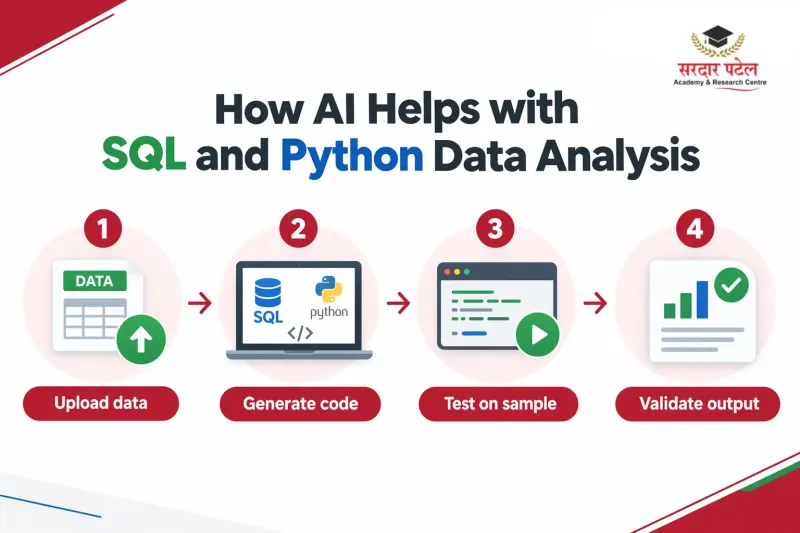
Most analysts eventually outgrow spreadsheets. Several tools above can help with code. ChatGPT runs Python, as covered earlier, and Julius connects to Postgres.
Whichever assistant drafts your SQL or Python, run it against a small sample first and compare the output with a result you already trust. A query can be syntactically perfect and still join the wrong tables.
For a broader shortlist beyond this guide, see AI tools every data analyst should know.
Matching Tools to Your Role
The right choice is rarely a single tool. Most teams combine two or three.
| Role |
Suggested starting point |
Why |
| Students and beginners |
ChatGPT or Julius |
Low barrier; rebuild results in Excel to learn |
| Finance and operations |
Excel Agent Mode |
Stays inside the workbook |
| Workspace-first teams |
Gemini in Sheets |
No new software |
| Enterprise BI |
Power BI or Tableau |
Governed models and dashboards |
Common Mistakes to Avoid
Even strong AI analytics tools make mistakes, so build checking into your routine.
- Trusting the first answer. Cross-check key figures with a pivot table or SQL query.
- Sharing sensitive data carelessly. Confirm your employer's policy before uploading customer or financial files.
- Feeding in messy data. Unclear headers and stray rows lead to wrong conclusions.
- Choosing the tool before the problem. Define the question first.
- Skipping fundamentals. You still need to judge whether an answer makes sense. That is a big reason ChatGPT is changing analytics careers rather than ending them
A Practical Way to Start
Whichever of the best AI tools for data analysis you pick, the same routine keeps you honest.
- Pick one real dataset, such as monthly sales or survey responses.
- Clean the headers. OpenAI suggests descriptive column headers and one row per record.
- Ask for a summary first, then a specific question.
- Ask the tool to show its method, formula or code.
- Verify the result with a second method.
- Save the prompts that worked so you can reuse them.
Tools change every few months, but these habits transfer. If you want structured practice with Excel, SQL, Power BI and AI together, explore our Data Analytics Course with AI.
Conclusion
The best AI tools for data analysis share one trait: they make your thinking faster without hiding how they reached an answer. Start with the tool that matches where your data already lives, verify everything important and add a second tool only when a real need appears.
If you want guided, hands-on practice, join SPARC's Data Analytics Course with AI, which covers Excel, SQL, Python, Power BI, Tableau and AI tools, at Kingsway Camp, near GTB Nagar Metro. Call +91 93129-66129 or visit the contact page.
FAQs
ChatGPT, Julius AI and Gemini in Sheets are approachable because you can start with plain-English questions. Beginners should still check results against basic Excel calculations, since a confident answer is not always a correct one. Start with one small dataset you understand well, so you can tell when the tool gets something wrong.
For exploration and learning, often yes, and it is one of the easiest places to begin. For recurring dashboards, governed company data or large databases, you will probably also need a BI tool or SQL. Think of it as a fast first pass rather than a complete analytics stack.
Copilot in Excel and Gemini in Google Sheets are the obvious AI spreadsheet tools to start with. Choose based on whether your team already uses Microsoft 365 or Google Workspace, because switching ecosystems costs more time than any feature gap saves.
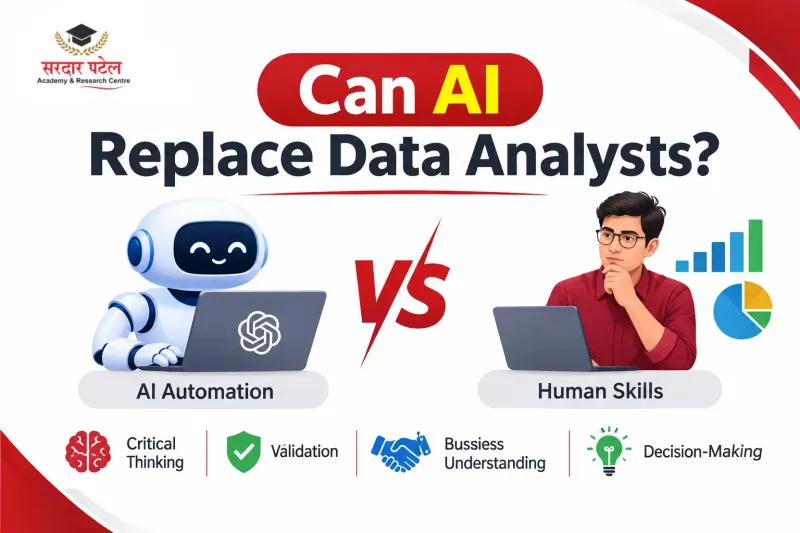
Not in the way headlines suggest. AI handles repetitive steps, but analysts still define questions, validate results and explain decisions.
It depends on the vendor, plan and your organisation's settings. Read the data-handling terms and follow internal policy before uploading anything sensitive. When in doubt, use anonymised or sample data first.
Yes. You need enough knowledge to spot a wrong join, a misleading average or a broken formula. AI speeds up the typing, but responsibility for the answer stays with you.