+91 9312966129
 sparc.enquiry01@gmail.com



Chat-GPT vs Copilot for Data Analysis: Which One Should You Use?
ChatGPT vs Copilot for data analysis: compare features, Excel and Power BI use, privacy and limits, then pick the right tool for your data.

Picture a big sales sheet, a manager waiting for a summary and no time to hand-build formulas. That is usually the moment the ChatGPT vs Copilot for data analysis question stops being theoretical. Both assistants can read a table, answer plain-English questions and draw charts. They differ in where they work and how much of the process you can inspect.
This guide takes the ChatGPT vs Copilot for data analysis comparison from an analyst’s seat. “Copilot” here means Microsoft Copilot as it appears inside Excel and Power BI. If you are still assembling your toolkit, this overview of AI tools for analysts offers helpful wider context.
What Each Tool Actually Is
ChatGPT: a flexible, chat-first assistant
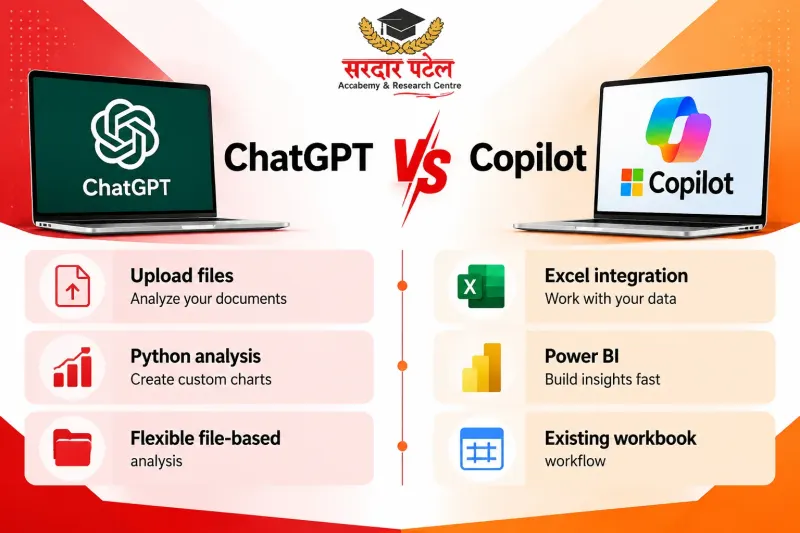
ChatGPT works in a chat window. According to OpenAI’s guide to data analysis in ChatGPT, it can work through files you upload, answer questions about them and produce tables or charts; for some tasks it also writes and runs Python code. That makes ChatGPT data analysis feel like handing a file to a colleague who codes: you ask, it computes, and you can review the code behind the answer.
Copilot: an assistant built into Microsoft tools
Copilot lives inside apps you may already use. In Excel, Microsoft says it can return insights as charts, PivotTables, summaries, trends or outliers. In Power BI, it can summarise a report, draft a narrative for a page and help with DAX. That tight integration is what Copilot analytics is really about: the assistant works on the workbook or report you have open, not on a copy. Where Copilot can change the file itself (for example in edit or agent modes), keep a backup copy of any critical workbook.
Some teams must settle the Microsoft side first, and this comparison of Power BI vs Excel helps with that decision.
ChatGPT vs Copilot for Data Analysis: Side-by-Side Comparison
This table of ChatGPT vs Copilot for data analysis differences is a starting point. Features vary by plan, licence and admin settings, so confirm what your own account includes.
| Factor |
ChatGPT |
Microsoft Copilot |
| Where you work |
Chat window, using uploaded files |
Inside Excel, Power BI and other Microsoft 365 apps |
| How it analyses |
Often writes and runs Python you can review |
Excel uses Python-based analysis for direct answers, plus formulas, PivotTables and charts |
| Best input |
Structured data, clear column names, one record per row |
Data formatted as a table or supported range |
| Live file access |
Works on the uploaded copy |
Works within the open workbook or report |
| Access requirements |
Depends on your ChatGPT plan |
May need a Microsoft 365 Copilot licence and admin enablement |
Want to test both on your own data? Use the table as a checklist and try a small, non-sensitive sample file.
Who Should Use Which
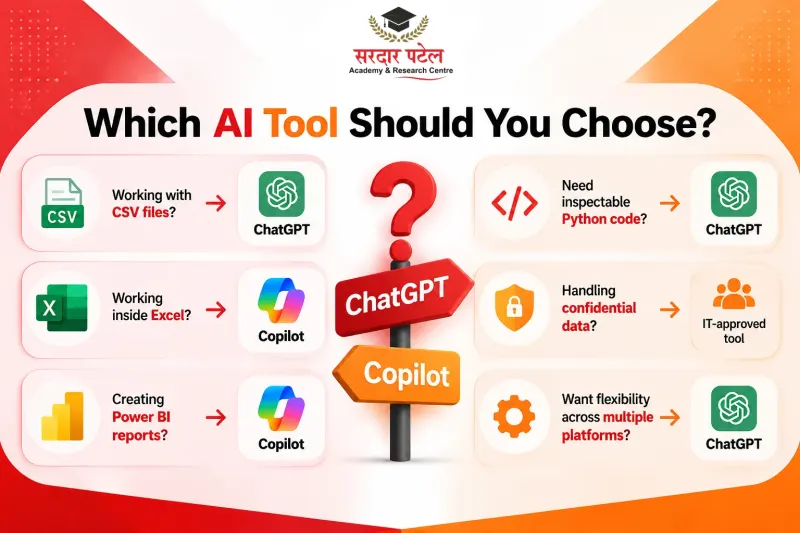
Your best starting point depends on who you are and what your organisation allows. Whichever you pick, employers increasingly look for analysts who can use AI alongside solid fundamentals.
| Reader |
Better starting point |
Why |
| Student or beginner with a CSV file |
ChatGPT |
You upload the file and can review the Python behind each answer |
| Analyst working in company Excel files |
Copilot |
It works inside the open workbook and follows existing permissions |
| Power BI report author |
Copilot |
It can build report pages and narratives once admin and capacity are set up |
| Freelancer without a Copilot licence |
ChatGPT |
No Microsoft 365 Copilot licence is needed |
| Team handling confidential data |
Whichever your IT approves |
Governance matters more than features |
How Each Tool Handles Everyday Tasks
Cleaning and exploring data
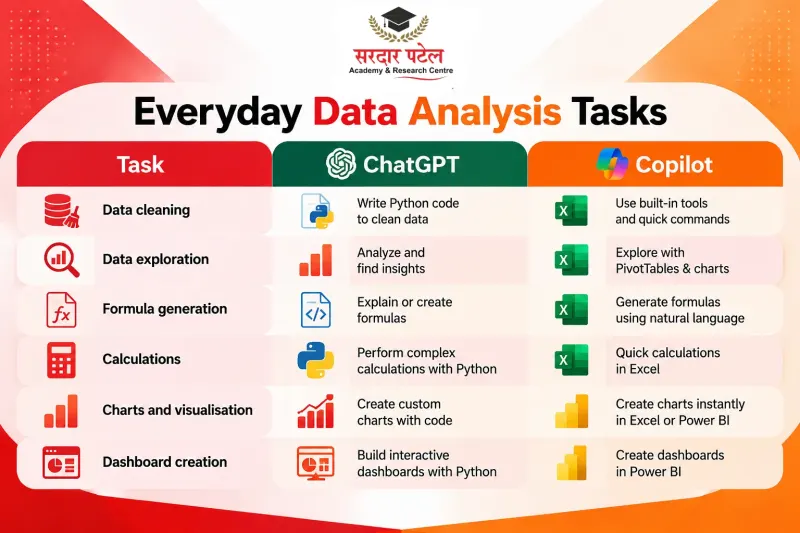
OpenAI recommends clear column names and one record per row, and Copilot in Excel expects a table or supported range. For ChatGPT vs Copilot for data analysis on messy files, plan on some manual tidying first.
Formulas and calculations
Copilot can suggest a formula, explain how it works and add calculated columns inside the workbook. ChatGPT can draft formulas too, but you paste them in yourself. For AI spreadsheet analysis that stays inside Excel, the in-app route is smoother.
Charts and dashboards
ChatGPT can create static chart images, and some chart types can be interactive. Copilot’s Excel insights can be added to a new sheet, and Copilot in Power BI can build report pages from a prompt. For dashboards and business intelligence reporting, Copilot has the edge; for quick visuals on a one-off file, ChatGPT is handy.
Prompts to Try on Both Tools
For AI spreadsheet analysis, specific prompts win, and Microsoft suggests naming the columns you want analysed. Adapt these to your own headers:
- “Show total Revenue by Region for each month and flag any month that fell more than 10% below the previous one.”
- “Are there outliers or anomalies in the Units column? List the rows.”
- “Create a PivotTable of Revenue by Product and Region.” (Copilot in Excel)
- “Explain how the formula in this column works, step by step.”
- “Show the Python you used for this chart, with comments.” (ChatGPT)
Strengths and Limits
When weighing ChatGPT vs Copilot for data analysis, it helps to separate what each does well from where it can trip you up.
Where ChatGPT fits best
- Handles uploaded files from many sources without needing Microsoft 365
- Python-backed work you can inspect step by step
Where Copilot fits best
- Works in the file or report you already have open
- Respects existing Microsoft 365 permissions
Its limits are equally clear. Microsoft states that the direct-answers feature in Excel does not support unstructured data and does not change your workbook. Copilot in Power BI needs a workspace on paid Fabric capacity (F2 or higher) or Premium capacity (P1 or higher), plus admin enablement; requirements change, so check the current Microsoft Learn requirements before you plan around them.
ChatGPT and Copilot are not the only options. Gemini, Tableau and Julius also handle data questions, and a broader look at the best AI tools for data analysis covers them.
Privacy and Data Safety
Microsoft says prompts, retrieved data and responses for Microsoft 365 Copilot stay within the Microsoft 365 service boundary, and that Copilot only accesses content a user already has permission to view; its privacy and security documentation has the details. With ChatGPT, OpenAI’s Data Controls let you choose whether your conversations help improve its models, and its Team, Enterprise and Edu plans offer additional controls, so review what your plan allows before uploading anything confidential. When in doubt, strip out names and ID numbers. For regulated teams, this one factor can settle the ChatGPT vs Copilot for data analysis choice before features even come up.
A Quick Worked Example
Illustrative scenario: a monthly sheet holds Date, Region, Product, Units and Revenue, and you need to find the region that is slipping.
- ChatGPT route: upload a CSV, ask for monthly revenue by region as a line chart, then request a list of unusual dips along with the code used.
- Copilot route: open the workbook, ask for revenue by region and any outliers, then add the best insight to a new sheet.
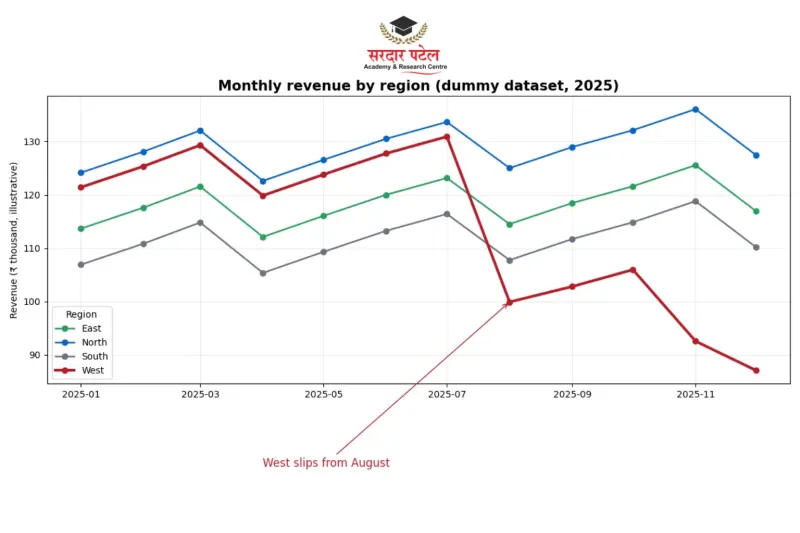
Both reach an answer; the difference is where the result lands and how easily you can verify it. Here, the choice is mostly about workflow, not intelligence.
How to Choose: A Step-by-Step Guide
Use this sequence for any new project. It keeps the ChatGPT vs Copilot for data analysis decisions tied to your real constraints.
- Check where the data lives. Workbooks and reports at work point toward Copilot analytics; an exported file from elsewhere points toward ChatGPT.
- Check access. A copilot may need a licence and admin approval. If you do not have it, ChatGPT is the practical route, and a list of free analytics tools covers no-cost alternatives.
- Check sensitivity. Confidential data belongs in the tool your organisation has approved.
- Decide on transparency. If reviewing code matters, ChatGPT data analysis with visible Python suits you.
- Consider your spreadsheet platform. Google-first teams can start with Google Sheets analysis instead.
- Pilot both. A fair ChatGPT vs Copilot for data analysis test uses the same sample file and the same questions, then compares accuracy and effort.
Common Mistakes to Avoid
Most disappointments in ChatGPT vs Copilot for data analysis come from habits, not software.
- Skipping verification. Microsoft advises verifying whatever Copilot produces, and its Power BI documentation notes that outputs are nondeterministic, so one prompt can give different results.
- Vague prompts. Microsoft suggests naming the columns you want analysed; specific questions get better answers.
- Letting skills fade. Tools speed up work but cannot judge whether a result makes business sense. See how ChatGPT is changing analytics careers for that shift. A structured course builds the Excel, SQL, Python and Power BI foundations that make AI output easier to trust.
Conclusion
There is no universal winner. Copilot suits work that already lives in Excel or Power BI, especially where permissions and governance matter. ChatGPT suits flexible, inspectable analysis of exported files. The smartest approach to ChatGPT vs Copilot for data analysis is to learn both, verify everything and let your data type and privacy needs guide the choice. If you are weighing how AI changes the analyst role, AI data analyst vs data analyst is a useful related read.
Want structured practice? Sardar Patel Academy & Research Centre (SPARC) runs a Data Analytics Course with AI covering Excel, SQL, Python, Power BI, Tableau and AI tools, at Kingsway Camp near GTB Nagar Metro Station, Gate No. 4, Delhi.
Call +91 93129-66129 or contact the SPARC team to know more about the course.
FAQs
Beginners already working in Excel often find Copilot easier, since suggestions appear beside the data. ChatGPT suits learners who want to see the Python behind an answer and learn how it was reached. If you are unsure, run the same small sample file through both and see which explanation makes more sense to you.
It can analyse uploaded files, and structured data with clear column names works best. Check OpenAI’s current list of supported file types; a clean CSV export is a safe fallback. Keep one record per row and a single header row, and avoid merged cells, since OpenAI notes that complex layouts and scanned or image-based tables may not be read reliably.
It depends on your account type. Work or school accounts typically need a qualifying Microsoft 365 business subscription plus a Copilot add-on licence for the full experience, and your IT admin can confirm what is available to you. Personal Microsoft 365 plans (Personal, Family and Premium) also include Copilot features, usually with usage limits. Microsoft also offers Copilot Chat at no extra cost with qualifying work accounts, a separate product from the add-on licence. Availability changes, so check which one you have.
Safety is often the first question teams ask. Microsoft describes permission-based access and enterprise data protection for Microsoft 365 Copilot, and its training module on Copilot data security is a good place to start. Still, ask IT before relying on it: your organisation’s policy, sensitivity labels and admin settings decide what you can actually use it for.
Yes, if your job allows. Understanding ChatGPT vs Copilot for data analysis in practice makes you adaptable across employers and toolsets, and gives you a fair basis for comparing them on your own data.